
End-of-Life Notice: Surveys for Jira Service Management is no longer available on the Atlassian Marketplace and can no longer be purchased. The app will reach its official end-of-life on October 30, 2026.
Customers with an active subscription will retain full access to the app, including support and maintenance, through the end of their current paid subscription term. In some cases, this term extends beyond October 30, 2026. Access will remain available until the subscription term concludes, after which the app will no longer be operational for that account.
To ensure a smooth transition, we recommend exporting your survey data and evaluating alternative solutions ahead of your subscription end date. You can retrieve your survey responses via API, or export your CES, CSAT, and NPS reports using the Export All Scales feature.
If you have any questions regarding your subscription end date or the transition process, please contact our support team.
Prerequisites
Before you can generate or view the survey reports, an administrator or manager must first grant the proper permissions to you.
Granting permissions
You will need to have the Administrators project role. Refer to the Manage service project role memberships documentation.
Report summary
Understanding customers' loyalty is vital to providing great customer service. The Customer Effort Score(CES) report allows you to measure how much effort a customer has to put in to resolve an issue.
Report type
Gauge chart, bar chart, and trend line graph
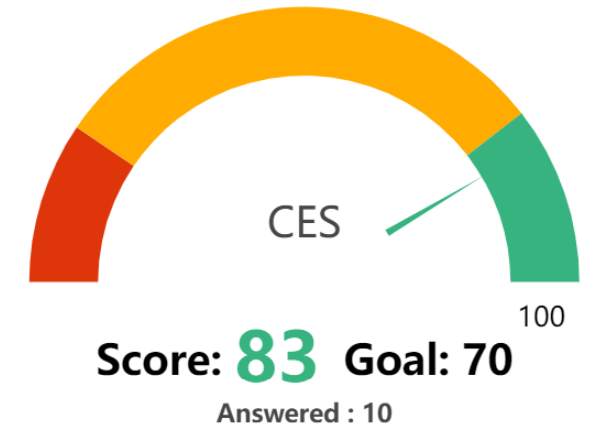
Gauge chart metrics
|
Metric |
Details |
|---|---|
|
Score |
The total score based on the average score of the accumulated survey answers received. |
|
Goal |
The set goal of the team to measure the individual's/team's performance. |
|
Answered |
The total number of surveys answered by the customers. |
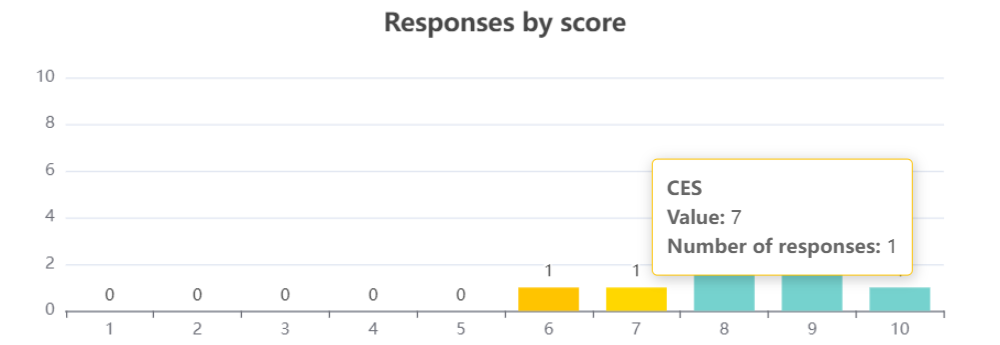
Responses by score metrics
|
Metric |
Details |
|---|---|
|
Value |
The specific score given by the customer for a Jira Service Management survey. |
|
Number of responses |
The total number of responses with the same score. |
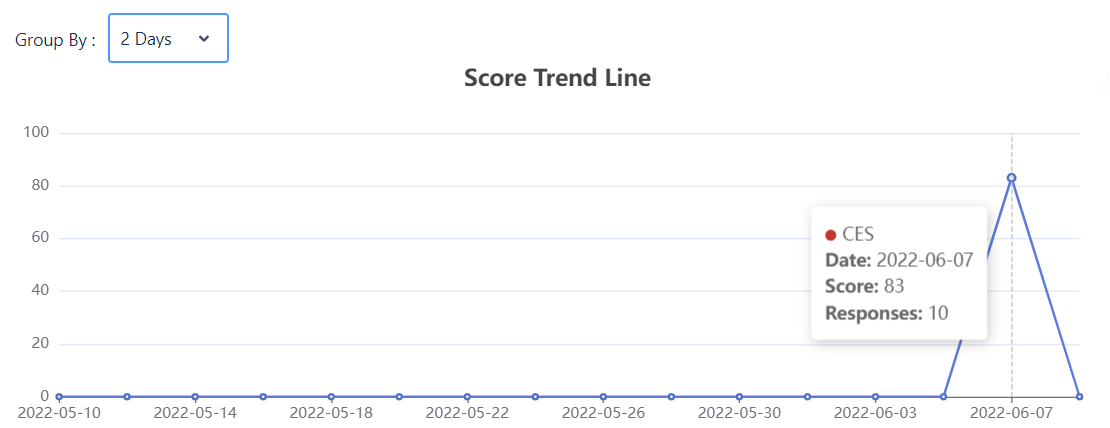
Score trend line metrics
|
Metric |
Details |
|---|---|
|
Score |
The total score accumulated over a specific duration. |
|
Responses |
The total number of responses received on a specific duration. |
Scenario
You would like to know the Customer Effort Score (CES) of a service desk agent in a specific timeline.
-
Go to Projects > Choose your Service Management project > Surveys report
-
Configure the survey parameters with the following details, the page will load the results automatically:
-
Assignee - Choose a specific assignee to view their performance or choose all of the assignees to view the performance as a team.
-
Question - Choose the CES option.
-
Survey Responded - Set the duration for when a survey is responded to and collected.
-
-
The results and scores will be depicted in charts and graphs. The Responses section will include all issues used to tabulate the data.
-
You can export the data in the following ways:
-
Export: This will export the data as seen in the survey report screen. This option will only export the current scale.
-
Export All: This will export all data, regardless of the scale, for the selected timeframe.
-